The application that records the moment you draw
As you draw with a pen in CSP, Photoshop, and other applications, it records pressure, tilt, and timing. Once you save, it uploads automatically to your account and proceeds through to certification.
If Windows shows a warning during install
You may see a “Windows protected your PC” prompt. The app is code-signed, but we registered as a publisher only recently, so this notice appears while that reputation builds. Click More info to reveal the publisher — if it reads “엠엠더블유오 MMWO”, the file really is ours. Once you've checked, choose Run anyway. If the publisher reads anything else, don't run it — download again from this page.
Already installed but still having trouble?
If you get an “already installed” error or updates won't apply, download and run the repair tool below — it cleans up the old version and freshly installs the latest. (Your work records and settings are preserved.)
Download the repair toolInstall
- Run the downloaded installer. (Administrator rights are not required.)
- The recorder opens automatically once installation is complete.
- In the recorder's settings, click “Connect to web” and log in and approve in the browser — that's all. For the full walkthrough, see the guide.
Windows 10/11 · Edge WebView2 runtime (included with Windows 11) · no .NET installation required
It records pen signals in the drawing app and your undo/redo counts. What you type, your full screen, and other apps are not recorded. (If you enable auto-screenshots, only the drawing app window is saved to a folder on your own computer.)
macOS support is still in preparation. Windows is supported first.
Supported apps
Sigan auto-detects and records while you draw with a pen in these apps.
Not listed? Most pen-drawing apps are still supported via “Record in all apps” in the recorder.
From first stroke to certificate
Install, connect, and draw as you always do. Sigan captures the rest.
Install the recorder
Download the Windows recorder and run it. No administrator rights are required.
Connect to the web
In Settings, click “Connect to web” — a browser opens. Log in and approve once. There are no codes to type.
Pick your artwork file (optional)
Choose the file you're drawing (.clip, .psd, etc.) so multiple sessions join into one work and get hash-matched to your saved file.
Record, then draw as usual
Click Record and draw normally in your app. Only pen signals and your undo/redo counts are captured — never what you type, nor anything outside the drawing app.
It syncs while you draw
Your progress uploads periodically even mid-session. When the badge at the top right of the waveform reads “Synced”, everything so far is safely stored.
Save, and it's issued
Save in your drawing app; the record uploads automatically and a certificate with a public verification link is issued.
Attach the finished piece (optional)
Once you have exported your finished image, file it under “Sign the final artwork” in the recorder settings. It then sits next to the process replay on the verification page. Conditions are in the section below.
Prove it with a link
Share the verification link or QR. Anyone can view the replay, the signals from your hand, and the work timeline — no login required.
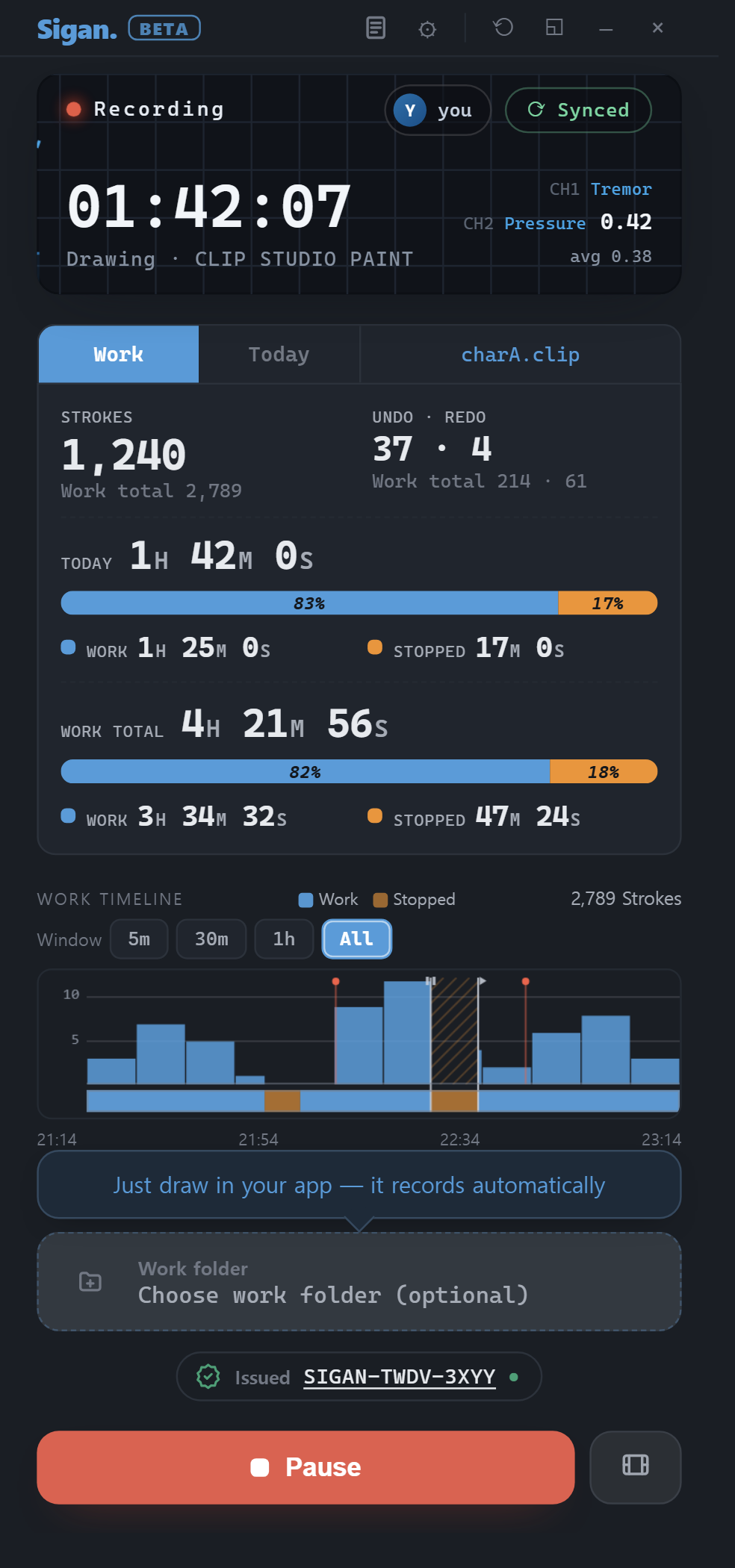
Reading the screen
Everything fits on one screen. You only need to know what each area is telling you.
Top bar
From the left: journal, settings, reset window size, compact mode. Closing the window keeps it in the tray and recording continues.
Waveform panel
Shows whether it's recording, how long it's been, and which drawing app it has locked onto. CH1 and CH2 are hand tremor and pen pressure; the top right shows your account and web sync state.
Scope tabs
“Work” is the single piece you're drawing now; “Today” is everything you drew today. On the right is the artwork file it currently recognises.
Strokes · Undo
The large number is today's; the small line under it is the total for this work. Undo/redo are counted only — never what you pressed.
Time
“Today” and “Work total” each get their own bar. Blue is drawing time, orange is paused, grey is stopped.
Work timeline
Bar height is how many strokes fell in that slice; hatching marks stretches where recording was off. The window buttons above limit the view to the last 5 minutes, 30 minutes, or hour.
Work folder
Point it at the folder holding your art files and saves are recognised automatically and joined to the record. Recording works without it too.
Issued badge
Once a certificate exists its serial appears here. Click it to open the verification page.
Record · Timelapse
The large button starts and pauses recording. The film icon beside it records a timelapse, switched on and off independently.
How the time is counted
Time drawing and time sitting are not the same. Sigan splits the not-drawing time in two as well, by the same rule everywhere.
- Total = the time actually elapsed from the first stroke to the last, including any time the recorder was off.
- Drawing = the part of it you were actually drawing. Briefly lifting the pen (up to 10 seconds) still counts as drawing.
- Paused = a short break between drawing (5 minutes or less) — looking at references or thinking, still at the desk.
- Stopped = a break longer than 5 minutes — counted as having stepped away or done something else.
- Total = drawing + paused + stopped. The three always add up to the total.
- The 5-minute line is the same for everyone. If it differed per person, "time at the desk" would mean different things and could not be compared.
- "Today" runs from midnight. If you draw past midnight, the day's figure and the work's total differ — that is why both are shown side by side.
Reading the timeline
The horizontal axis is time and the vertical bars are strokes drawn in that slice. The ribbon below shows state: blue is drawing, orange is paused (a short break of 5 minutes or less), grey is stopped. Vertical lines mark pauses, resumes and notes. The range buttons zoom into the most recent stretch.
Signing the final artwork
You can file one finished image with the work. In the recorder's settings, just below your web connection, find the “Sign the final artwork” row, press Attach and pick the image you exported. (The row only appears once you're connected to the web.) The image then sits right beside the process replay on the verification page, so viewers can see with their own eyes that this process produced this picture. Once it's on the certificate it can't be quietly swapped for another image either. (It does not examine the picture and rule on whether a human drew it.)
- The best moment is right after you finish and export. During recording or just after you stop both work — attach it after stopping and it uploads straight away.
- If you've closed the recorder or moved on to another work, it will tell you there's nothing to attach to. Start recording that work again, then attach.
- Only png, jpg (jpeg) and tif (tiff) count, and the file must sit inside your work folder (webp isn't supported yet). If you haven't set a work folder, set one in settings first.
- The file's last-saved time has to fall after this work started. Pick an image from an earlier work, or a copy inside a backup folder, and it comes back with the reason.
- What gets uploaded is a single copy scaled to 1024 px on the long edge. The original file never leaves your computer.
- If you swap in a different picture later, the marker for the earlier one stays on the certificate too. Only the last image is shown, but the list never loses the old entry — so attach once your export is final.
- You can hide it and show it again at any time from the verification page. Hidden means gone from the page for everyone. Only the anti-swap marker remains, as a number that cannot bring the picture back.
Compact mode
The compact button in the top bar shrinks it to a small widget — handy floating above your drawing app. In settings you choose which items it shows, plus text size and colour. Press it again to return to the full window.
If something's off
I'm drawing but nothing is recorded
Check that recording is on and that your app's name appears in the waveform panel. If it doesn't, the app hasn't been picked up yet — click its window once to bring it to the front.
Pressure reads 0
On Clip Studio or SAI, follow the pressure-linking note below once. If your tablet driver has no WinTab at all, turning on Windows Ink in the driver's settings will capture pressure.
Stopped time looks too long
After you lift the pen, the first 10 seconds still count as drawing; past that it becomes a pause, and 5 more minutes turns it into stopped. Both are fixed for everyone and can't be changed in settings — if they differed per person, “time spent seated” would mean different things and couldn't be compared. A long stopped stretch means you really were away, or working in a window other than your drawing app.
It recorded a different file
Set an artwork file or a work folder; the recorder then pauses and shows a banner whenever you're drawing something else.
Supported drawing apps
The supported drawing apps are CLIP STUDIO PAINT and Photoshop. Automatic artwork-file detection and continuous recording are built around these two, so other drawing apps aren't supported yet.
Using Clip Studio?
Clip Studio uses WinTab, so turn on 'pressure linking' once in the recorder's settings (one admin prompt). That lets pressure and tilt be captured fully. Photoshop and other Windows Ink apps work right away — no need for this step.
What we record, and what we don't
Only the coordinates, pressure, tilt, and timing of your pen while drawing, plus counts of undo/redo (Ctrl+Z/Y) and paste (Ctrl+V). For a paste we note what kind of source it came from — never the pasted content. Nothing else you type is recorded, and we never capture anything outside the drawing app's own window.